How to Use Sandboxie for Application Separation
Sandboxie is useful for more than opening one suspicious file. Separate sandboxes can also keep everyday applications from sharing the same writable environment. That makes it easier to separate work from personal browsing, test multiple versions of a program, reset a troublesome application, or contain software that you need but do not completely trust.
The basic design is simple: create one box per trust boundary. Programs in Work, Personal, and Testing can run at the same time, but their redirected changes live in different box roots.
Application separation is not identity separation by itself. If two browsers sign in to the same cloud account, the service can still connect that activity. Sandboxie separates local application state; it does not make you anonymous.
Why use separate sandboxes?
- Work and personal browsing: keep cookies, temporary files, and downloaded content in different disposable environments.
- Multiple application profiles: run separate instances with different settings without mixing their redirected data.
- Legacy software: limit where an old application can write and whether it can reach the network.
- Testing: install or configure software in a box, then throw the changes away.
- Client separation: keep temporary client tools and downloads out of your normal browser environment.
Plan the boundaries first
Do not create dozens of boxes without a reason. Start with three that have clear jobs:
| Box | Purpose | Suggested policy |
|---|---|---|
Work-Web | Work browser and approved portals | Allow only the work browser; restrict access to personal data |
Personal-Web | Personal browsing | Separate browser profile; delete on a schedule |
App-Testing | Unknown or temporary programs | Block network by default; no direct access to sensitive folders; delete after each test |
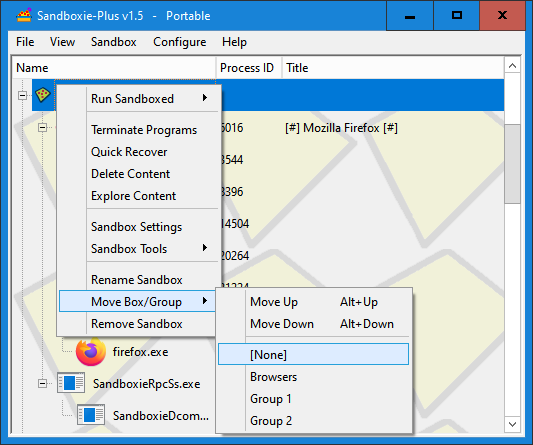
Give every box a descriptive name and a different window-border color. The visual cue helps prevent entering work credentials into a personal or testing instance.
Step 1: Create a box for each application group
- Open Sandboxie-Plus.
- Choose Sandbox → Create New Box.
- Create
Work-Web,Personal-Web, andApp-Testing, or use names that match your workflow. - Open each box’s options and choose a distinct border color under appearance settings.
- Decide whether the box should retain state or automatically delete its contents after all programs stop.
Step 2: Limit which programs can start
A dedicated box is more useful when only expected executables can run inside it. In the box options, find the program-start restrictions and allow the applications that belong there.
- Allow the selected browser in
Work-WebandPersonal-Web. - Allow the test program and any required child process in
App-Testing. - Be cautious with scripting engines, PowerShell, command shells, and unsigned helper programs.
- If an application breaks, inspect its actual child processes before broadly allowing everything.
This is allow-listing, not a compatibility contest. A box that permits every executable provides less separation than one designed around a small, known process tree.
Step 3: Apply network rules per box
Local isolation and network isolation are different controls. Configure internet access deliberately:
Work-Web: allow the work browser, but not unrelated applications.Personal-Web: allow the personal browser only.App-Testing: deny internet access unless the test specifically requires it.
Network restrictions reduce call-home behavior and data theft, but they do not undo information already exposed to the application through files, clipboard content, or command-line arguments.
Step 4: Protect host data
Sandboxing write operations is only half of the problem. An application that can read your real files may still upload them. Use privacy or resource-access restrictions to prevent boxes from reading sensitive host locations.
- Block password-manager databases and browser profile folders.
- Block SSH and cloud-provider credential directories.
- Block finance, HR, client, source-code, and personal-document folders unless the boxed application genuinely needs them.
- Restrict clipboard and other Windows components where the selected Sandboxie-Plus box type supports it.
- Grant direct file access only to a narrow exchange folder, never an entire user profile.
Step 5: Use a controlled exchange folder
Create a folder such as C:\Sandbox-Exchange for files that intentionally move between trust zones. Treat it like an airlock:
- Place only the input a boxed application needs into the exchange folder.
- Let the application produce output inside its sandbox first.
- Scan and inspect the output before recovery.
- Recover only the expected file into the exchange folder.
- Move the verified result to its final destination outside Sandboxie.
Do not use Downloads or the Desktop as a universal exchange area. Those folders usually contain too much unrelated data.
Step 6: Launch the right application in the right box
Right-click an application and choose Run Sandboxed, then select the intended box. You can also make shortcuts with Sandboxie’s launcher:
"C:\Program Files\Sandboxie-Plus\Start.exe" /box:Work-Web "C:\Program Files\YourBrowser\browser.exe"
"C:\Program Files\Sandboxie-Plus\Start.exe" /box:Personal-Web "C:\Program Files\YourBrowser\browser.exe"
Use separate native browser profiles as well. The browser profile separates accounts and bookmarks; the Sandboxie box separates redirected local changes. Using both is stronger and easier to understand than relying on either one alone.
Step 7: Force applications into their assigned boxes
For applications you always want isolated, configure a forced program or forced folder rule in the assigned box. This reduces the chance of accidentally launching the application outside Sandboxie.
- Force the work browser executable into
Work-Web. - Force a dedicated downloads-testing folder into
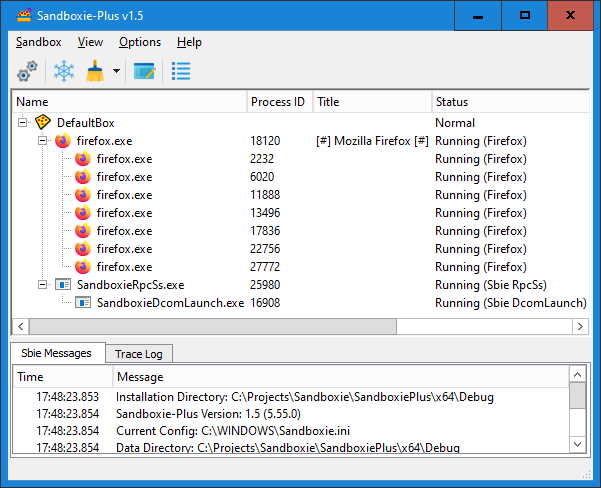
App-Testing. - Test the rule by launching from the normal Start menu and checking the colored border and process tree.
- Remember that forced-program mode can be temporarily disabled. Always verify the visual indicator before handling sensitive data.
Persistent boxes versus disposable boxes
| Mode | Best for | Main tradeoff |
|---|---|---|
| Persistent | Work browser state, stable application profiles | Old cookies, downloads, and unwanted changes accumulate |
| Auto-delete | Testing, guest browsing, one-time tools | Anything not recovered is lost when the box is deleted |
| Snapshot-based | Repeatable test baselines | Requires deliberate snapshot management and edition support |
For a persistent box, schedule periodic cleanup and review its contents. For a disposable box, enable automatic deletion only after confirming that no needed work is stored exclusively inside it.
Verify the separation
- Launch one browser in
Work-Weband another inPersonal-Web. - Create a different test bookmark, cookie, or text download in each.
- Confirm each process appears beneath the expected Sandboxie box.
- Open each box’s file view and confirm its redirected data is stored separately.
- Delete
App-Testingand verify the work and personal boxes remain intact.
Common mistakes
- Using the same box for programs with different trust levels
- Allowing every program to access the internet
- Giving direct access to an entire home directory
- Assuming a sandbox hides identity from websites
- Recovering unknown executables and running them normally
- Forgetting which browser window is sandboxed
- Keeping a “temporary” box forever without reviewing or deleting it
When to use a virtual machine instead
Sandboxie is lightweight because boxed applications still run on the Windows host. Use a separate virtual machine when you need a different operating system, a clean kernel boundary, snapshots of the entire OS, isolated network instrumentation, or a place to analyze probable malware. Do not turn a daily workstation into a malware lab.