How to Safely Run Untrusted Programs with Sandboxie
Downloads, email attachments, cracked utilities, and one-off tools all create the same problem: sometimes you need to open a file before you fully trust it. Running it normally gives the program access to your Windows profile, browser data, documents, and registry. A sandbox gives you a disposable first layer between that program and the rest of the PC.
Sandboxie-Plus runs Windows applications inside an isolated box. File and registry changes are redirected into that box instead of being written permanently to the host. When the test is over, you can terminate the program and delete the entire sandbox.

Important: a sandbox lowers risk; it does not make unknown software safe. Keep Microsoft Defender enabled, do not enter passwords into an untrusted program, and use a separate virtual machine for genuinely hostile samples or malware research.
What this protects against
- Installers scattering files across your user profile
- Programs adding unwanted registry entries or startup items
- Suspicious documents or attachments spawning child processes
- Browser downloads that you want to inspect before keeping
- Temporary tools that should leave no changes behind
It does not automatically protect an account after you type its password into a malicious page, and it cannot promise containment against every privilege-escalation or kernel vulnerability. Treat it as one strong layer in a larger security setup.
Step 1: Download and install Sandboxie-Plus
- Download Sandboxie-Plus from the project’s official GitHub releases page. Avoid third-party download mirrors.
- Choose the installer that matches your Windows architecture. Most current PCs use 64-bit Windows.
- Run the installer, keep the Plus interface selected, and allow the Sandboxie driver and service to install.
- Open Sandboxie-Plus from the Start menu. You should see a box named
DefaultBox.
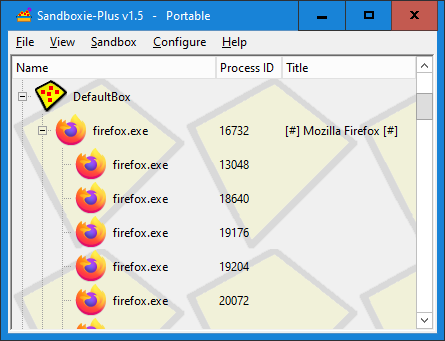
Before testing anything, update Windows and Microsoft Defender. Scan the downloaded file normally as well. A clean scan is useful, but it is not proof that a file is harmless.
Step 2: Create a disposable test box
- In Sandboxie-Plus, open the Sandbox menu and choose Create New Box.
- Name it something obvious, such as
Untrusted-Test. - Use a security-hardened box type if your installed edition exposes that choice. Otherwise, start with a standard sandbox and apply the restrictions below.
- Open the box options and enable a visible window border. The border makes it harder to forget whether a program is actually sandboxed.
Recommended restrictions
- Block network access if the program does not need the internet.
- If it does need the internet, allow only the exact executable that needs access.
- Do not expose password managers, browser profiles, SSH keys, cryptocurrency wallets, or personal document folders to the box.
- Do not enable broad direct-access rules just to make a questionable program work.
- Avoid running the sample as an administrator. UAC elevation increases what a program may be able to do.
Step 3: Run the suspicious program sandboxed
- Right-click the installer, executable, or document in File Explorer.
- On Windows 11, select Show more options if necessary.
- Choose Run Sandboxed.
- Select
Untrusted-Testand confirm. - Verify that the program appears beneath that box in Sandboxie-Plus and that its window has the configured colored border or sandbox indicator.
You can also right-click the box in Sandboxie-Plus and choose Run or Run Program, then browse to the file. For command-line use, the official launcher supports a named box:
"C:\Program Files\Sandboxie-Plus\Start.exe" /box:Untrusted-Test "C:\Path\To\program.exe"Step 4: Observe before you trust
Do not click through the program blindly. Watch what it asks for and what it launches. Unexpected elevation prompts, disabled security tools, new command windows, requests for credentials, or network activity unrelated to the program’s purpose are reasons to stop.
- Expand the sandbox in Sandboxie-Plus and inspect the running process tree.
- Use the box’s file view or Explore Contents to see redirected files.
- Check whether the program created files in simulated Desktop, Downloads, AppData, or Program Files paths.
- If internet access was allowed, treat anything typed or opened in the program as potentially exposed.
Step 5: Verify the host was not changed
A simple test makes the redirection model easy to understand:
- From inside the sandboxed program, create a uniquely named file such as
sandbox-test-2026.txton the Desktop. - Confirm the sandboxed program can see the file.
- Open a normal, unsandboxed File Explorer window and check the real Desktop.
- The file should exist in the sandbox’s redirected storage, not as a permanent host change.
This is a functional check, not a malware-analysis verdict. For higher assurance, compare startup entries and use Windows Security for a follow-up scan. If the program behaved suspiciously, do not run it outside the box.
Step 6: Recover only what you intended to keep
Sandboxie can recover downloaded or created files from a box. Be selective. Recovering an unknown executable and then launching it normally defeats the purpose of the sandbox.
- Recover only documents or output you expected.
- Scan recovered files with Microsoft Defender.
- For important files, check the hash or digital signature against the publisher’s official value.
- Never recover a file merely because the sandbox prompts you to do so.
Step 7: Terminate and delete the sandbox
- Right-click
Untrusted-Testand choose Terminate All Programs. - Confirm no process remains beneath the box.
- Choose Delete Content or Delete Contents.
- Review the recovery list one last time, then delete the sandbox contents.
The official documentation notes that boxes are not automatically deleted by default. You can enable automatic deletion under the box’s Delete settings if this box should always be disposable.
A practical decision rule
- Known publisher, valid signature, expected download: scan it and use normal caution.
- Unknown utility or suspicious attachment: use Sandboxie with network and data access restricted.
- Likely malware or an adversarial sample: do not use your daily PC. Use a disposable, isolated virtual machine and a dedicated analysis workflow.